Notifications drive teamwork and output in SaaS apps by keeping users informed, reducing delays, and helping teams act on changes in real time. This post looks at how four leading products -- Pitch, Figma, Vsimple, and GitHub -- design their notification systems. Each case study shows patterns and best practices you can apply to your own SaaS product.
In part one of this series, we looked at what makes a good alert system. Now let's see how real products do it. These case studies show how smart design helps users work better as a team.
Pitch
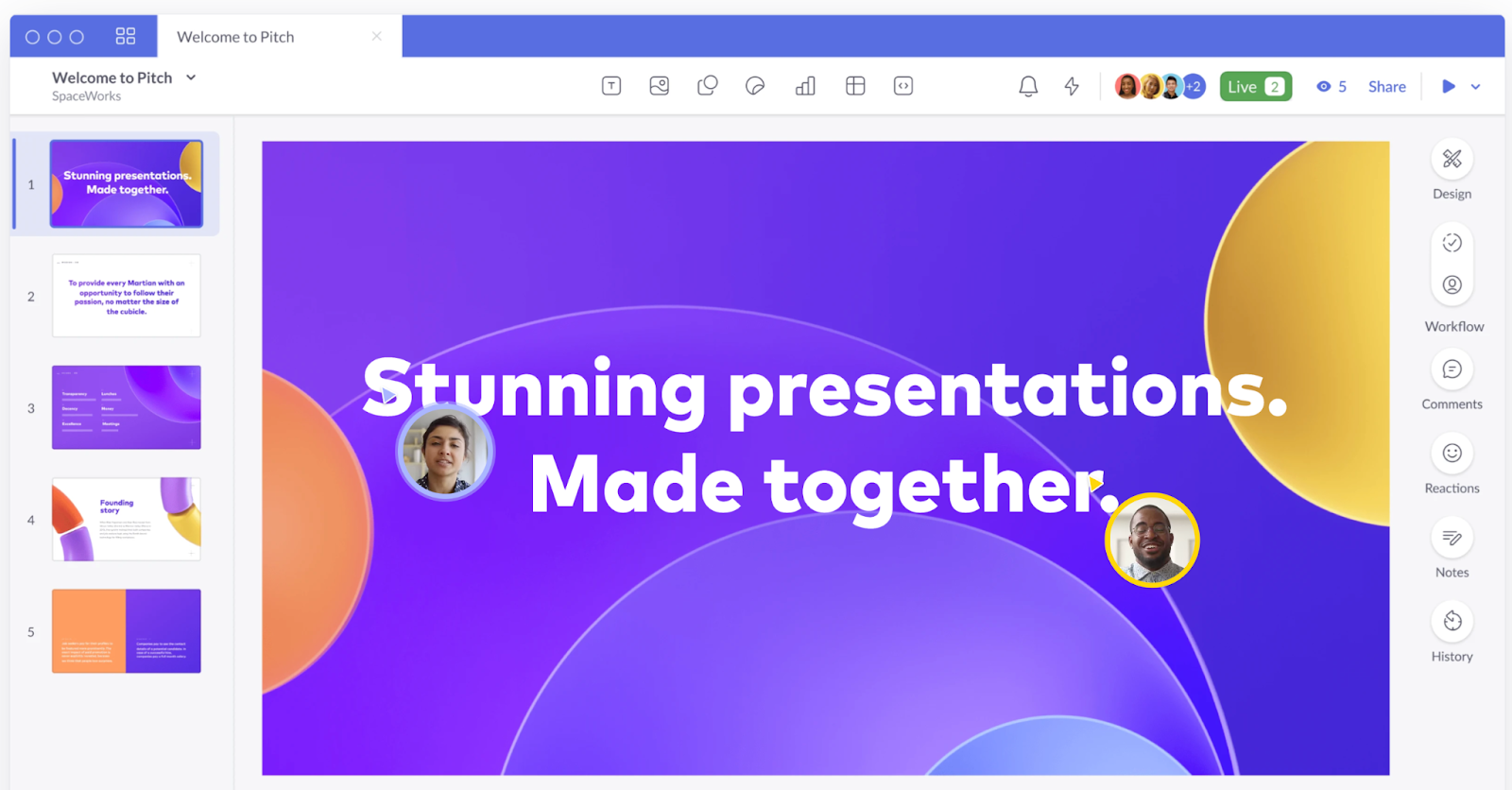
Pitch is a slide tool built for real-time teamwork. It offers smart workflows and simple design tools. Pitch makes it fast and easy for teams to build and share great slides.
Source: (Pitch)
How Pitch sends updates
Updates play a key role in team slide tools. Pitch knows this well. In 2021, Pitch chose to rebuild its alert system with MagicBell.
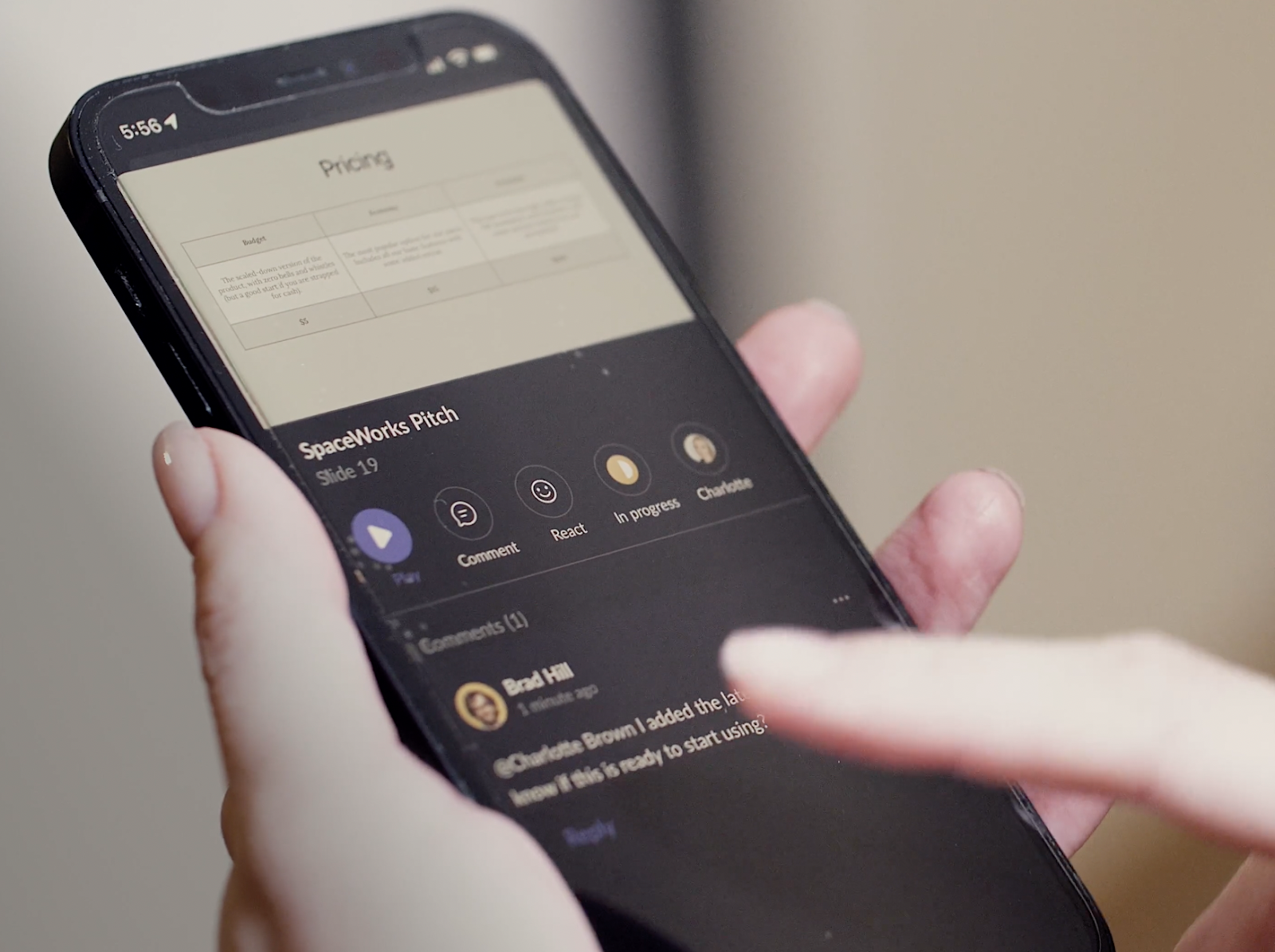
Pitch says a user gets an update when a team member does one of these:
- Assigns you a slide.
- Tags you in a comment.
- Replies to your comment.
- Resolves your comment.
- Invites you to a workspace.
- Invites you to a deck.
What makes Pitch's system work
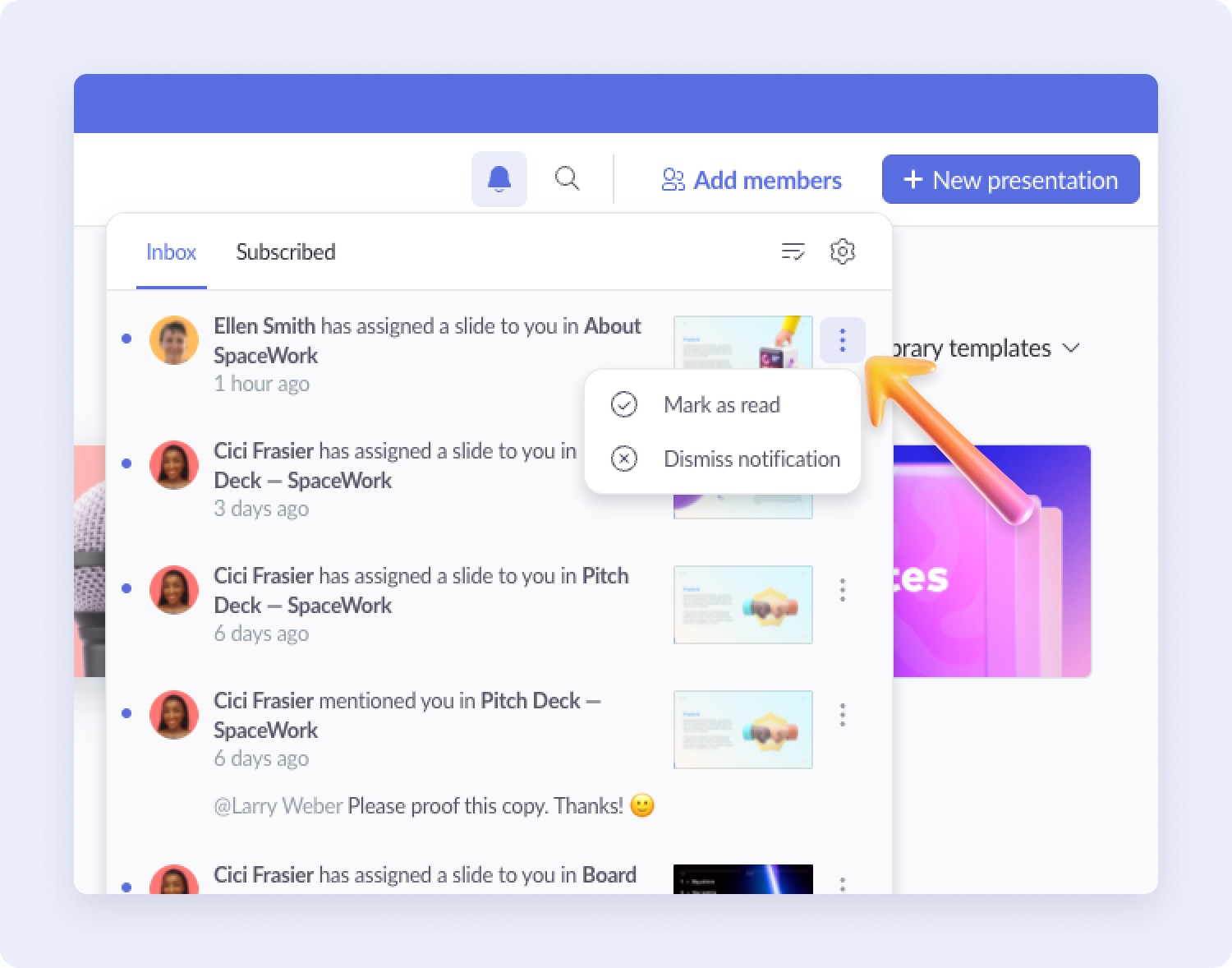
The in-app inbox gives users a fast view of all changes. Pitch has an inbox that shows the latest updates for each user. Users don't need to dig through email. They just open Pitch and click the bell icon. A red badge on the bell shows items that need their focus.
Source: (Pitch)
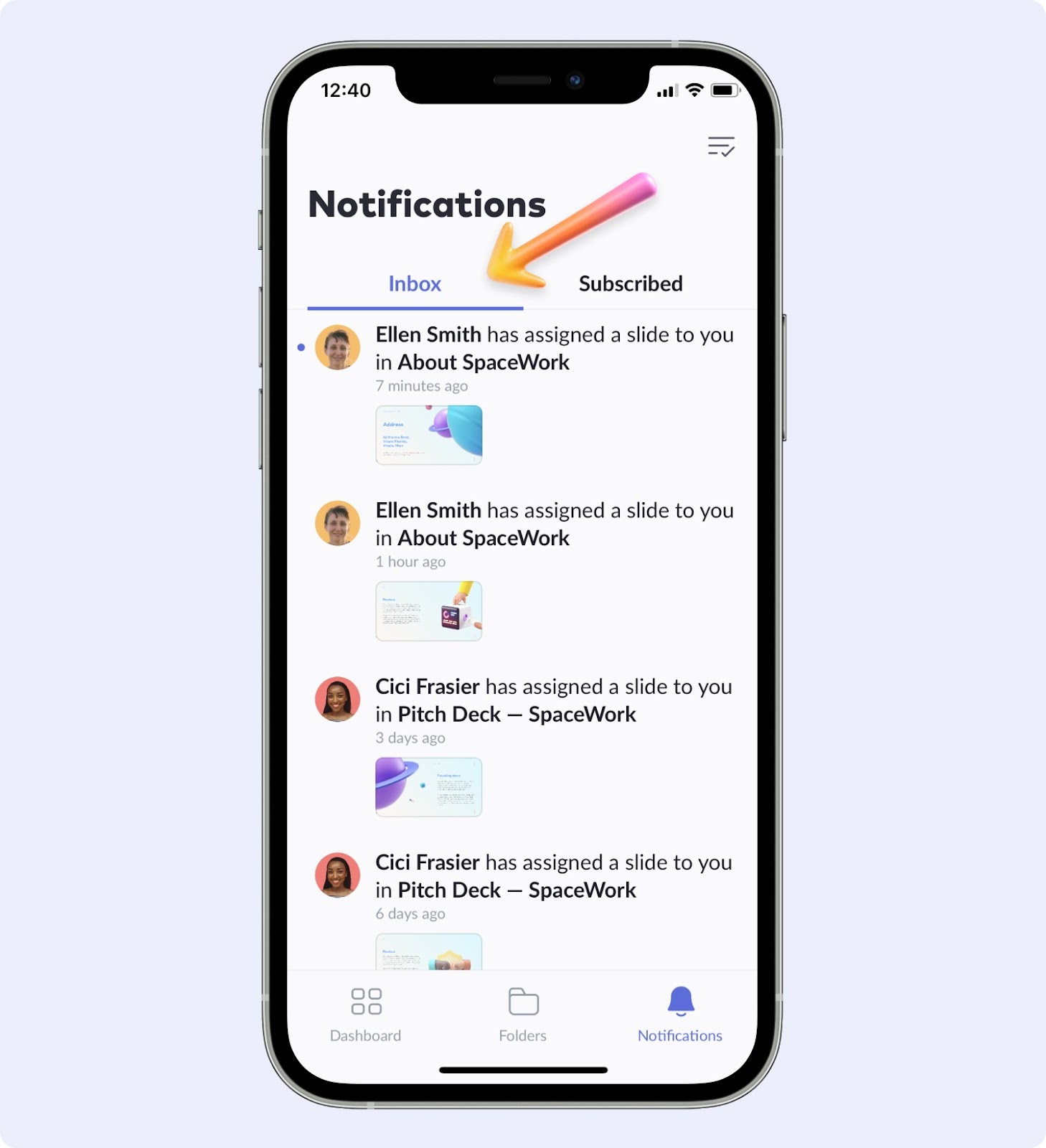
Cross-device support keeps things the same on all devices. With MagicBell's API, Pitch gives users the same feel on iOS, Android, macOS, Windows, and the web.
Source: (Pitch)
Clickable updates help users get more done. Users can click any update and jump right to the deck. From there, they can reply to comments, hand off tasks, or change the deck status.
Source: (Pitch)
Figma
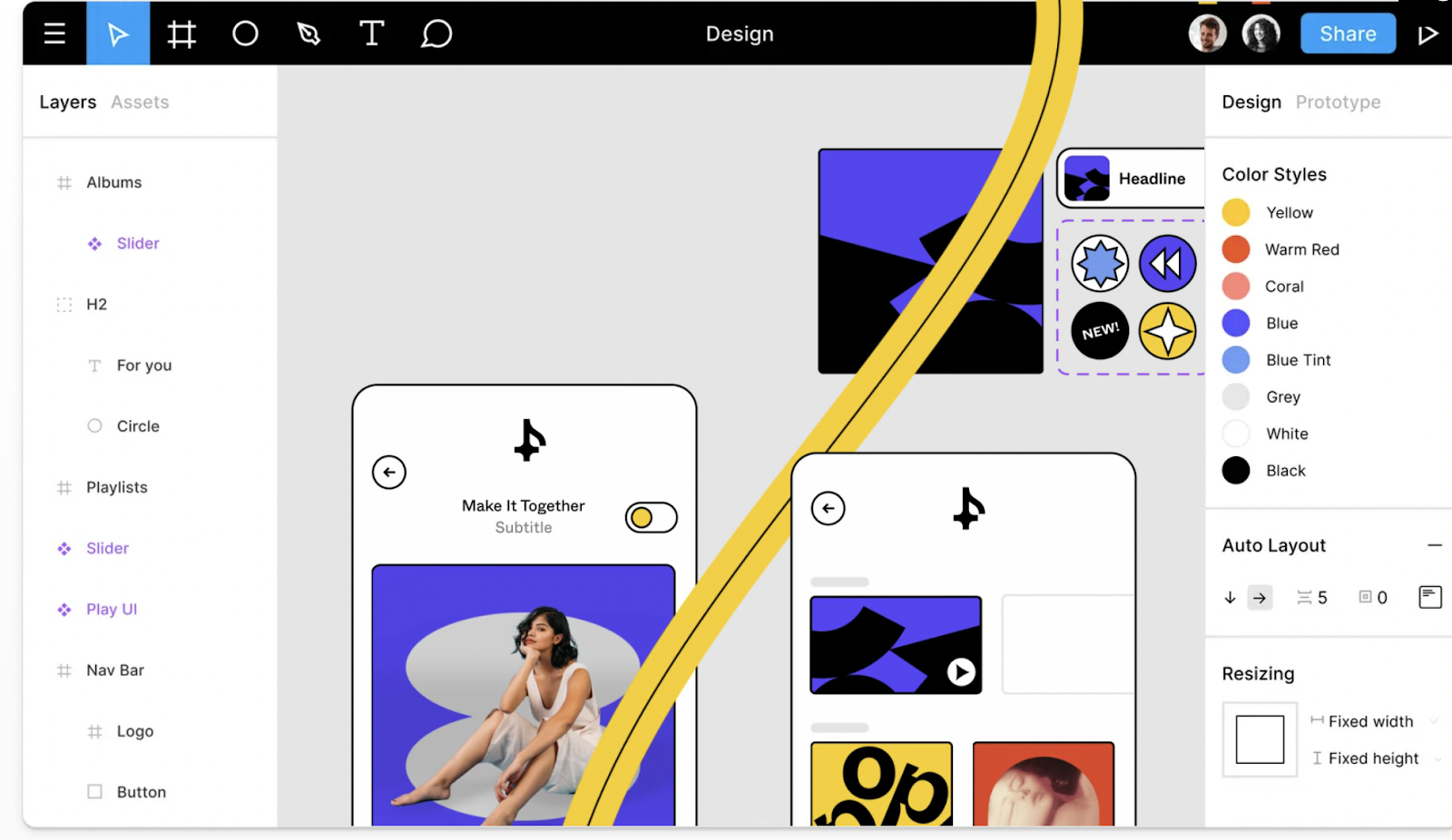
Figma is a browser-based design tool built for teams. People can work on the same Figma file in real time, much like a Google Doc. This helps teams build, share, test, and ship designs fast.
Source: (Figma)
How Figma sends updates
Alerts are at the core of Figma. They keep users in the loop about changes to design files. Figma uses three main channels: email, Slack, and an in-app panel.
Figma's help docs say it sends alerts for these events:
- Invites to a file, project, or team.
- Changes to a user's role.
- New comments or replies on a file you work on.
- Any time someone @tags you in a file.
- Likes or copies of a file.
- Likes or installs of plugins and widgets you made.
What makes Figma's system work
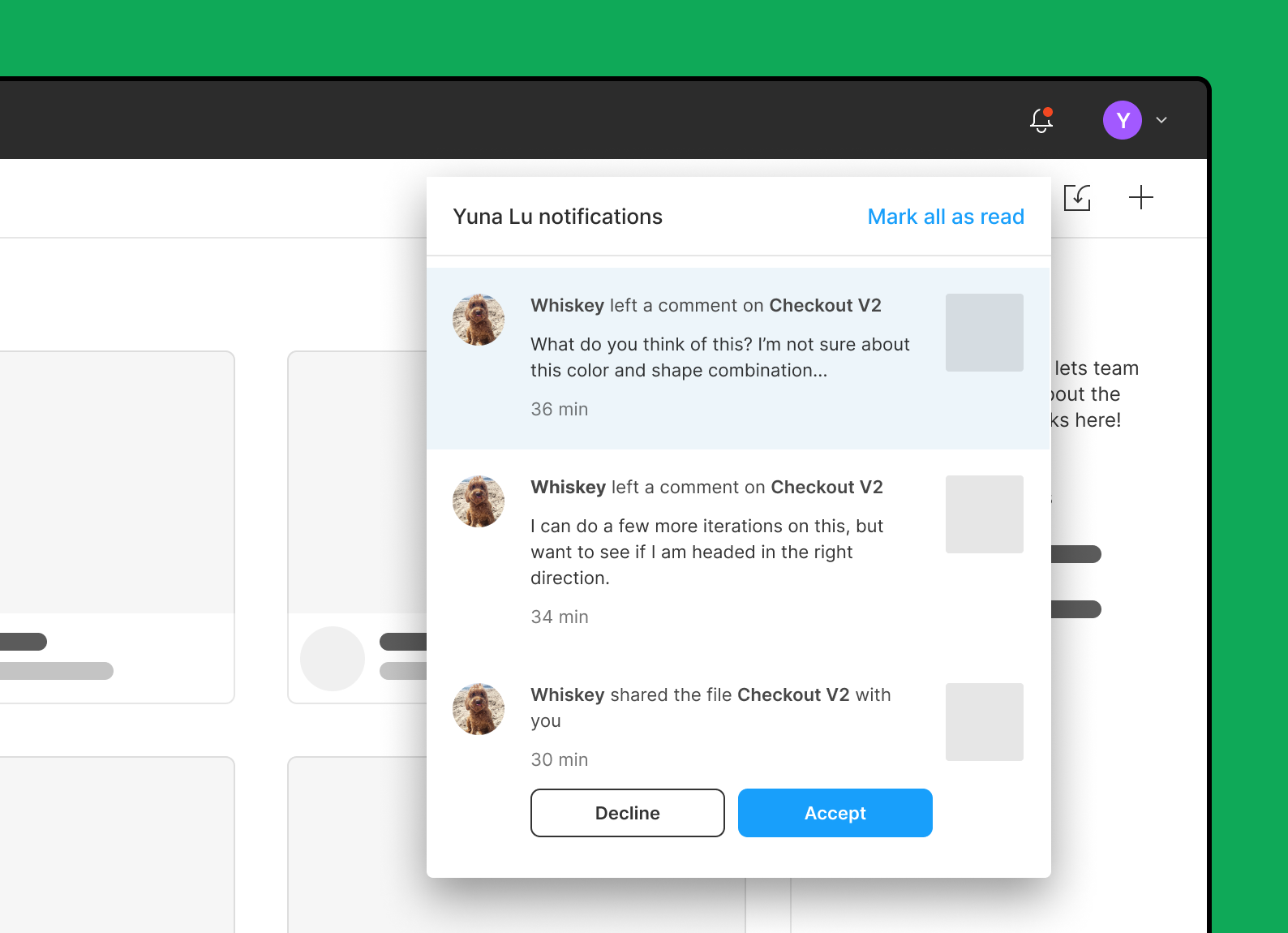
The inbox helps users stay in the know. Figma has an inbox that shows all key updates for each user. A red dot on the bell icon flags new items. This helps users track changes to their design files. They can see likes, edits, new comments, and replies.
Source: (Figma)
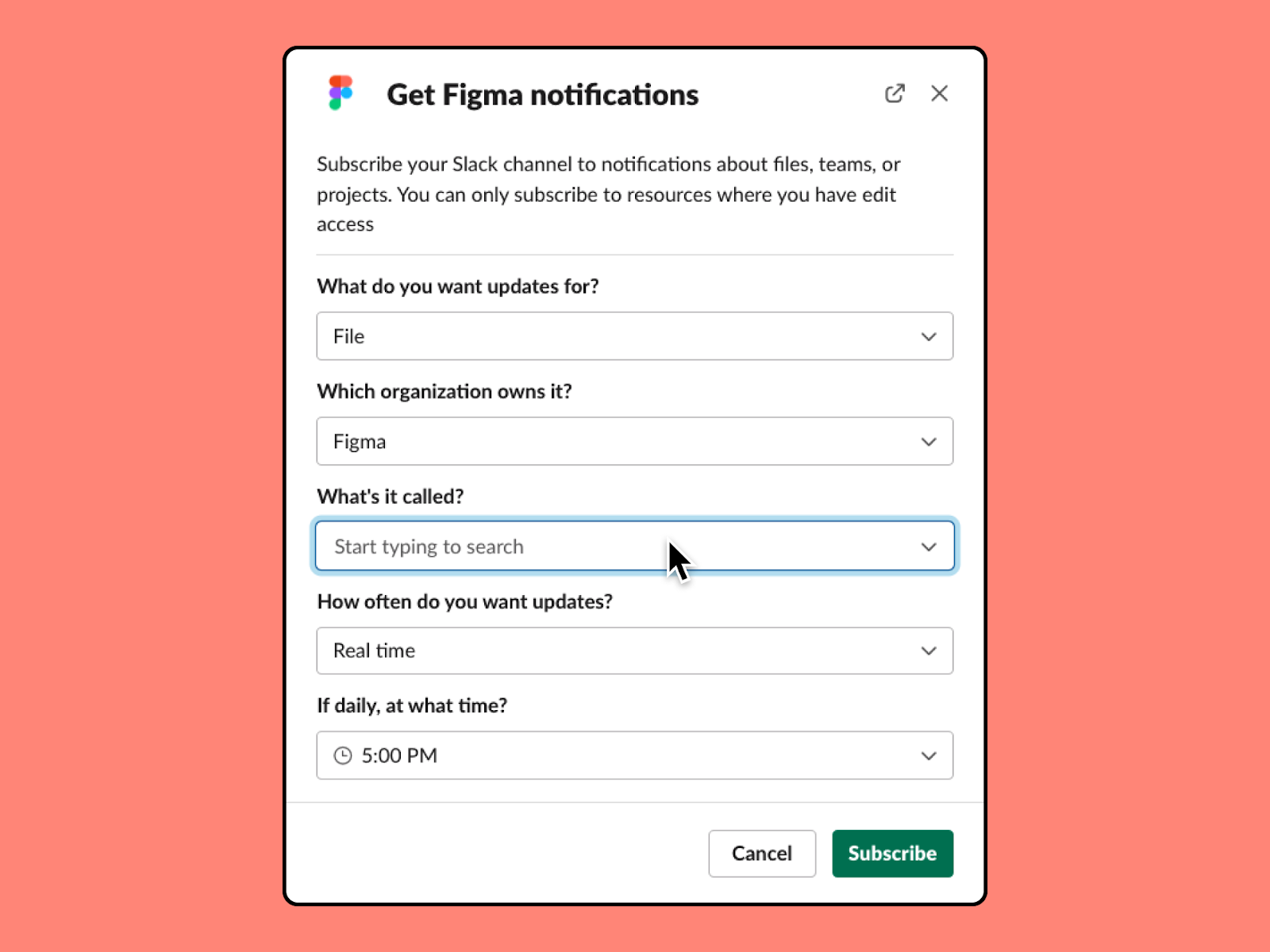
Users can tune alerts to fit their needs. Figma lets users shape their own alert setup. They can turn off email alerts if they want. Slack channels can get Figma alerts for certain files, projects, and teams. Users can also opt in or out of update feeds. They can set how often they get each type of alert.
Source: (Figma)
Vsimple
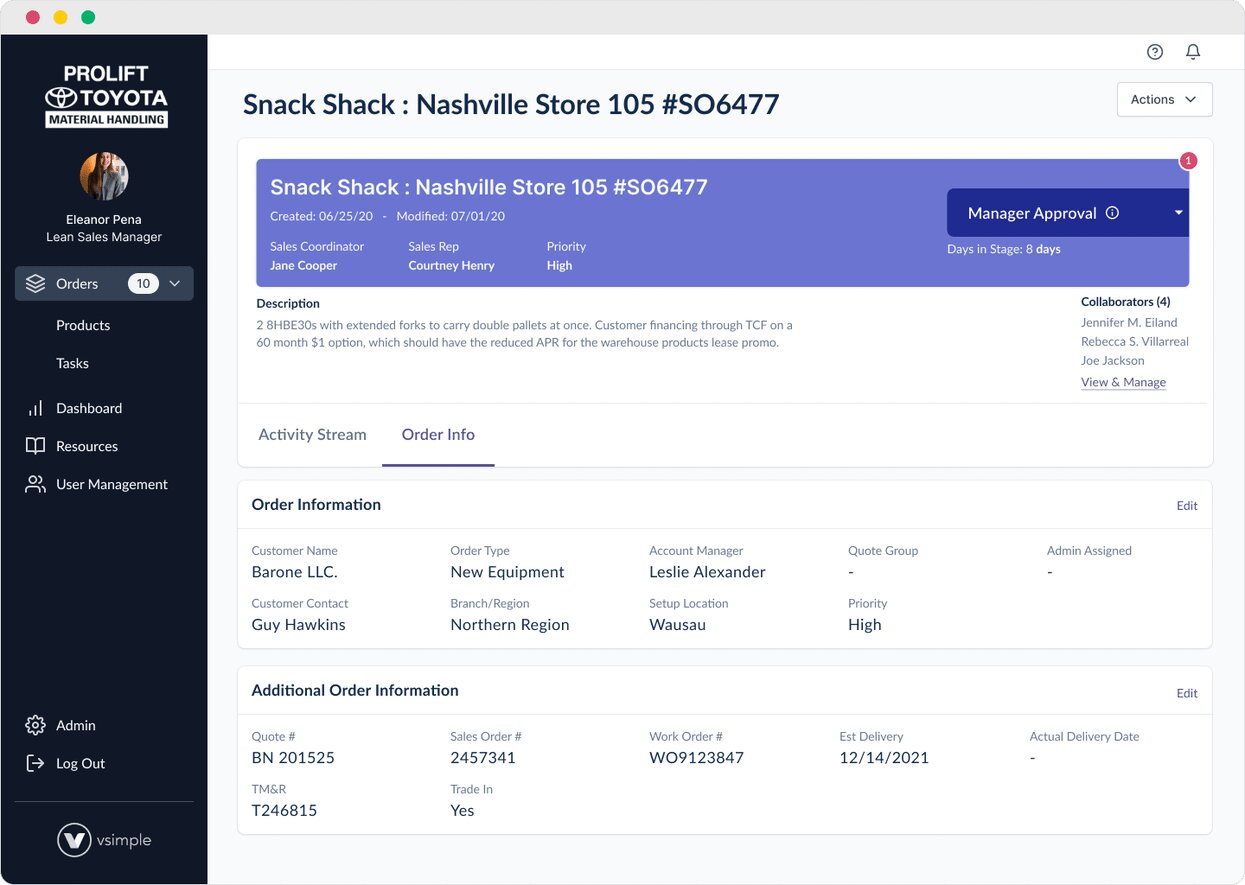
Vsimple is a workflow tool for makers, dealers, and sellers. It brings order tracking, docs, sign-offs, chat, and teamwork into one place.
Source: (Vsimple)
How Vsimple sends updates
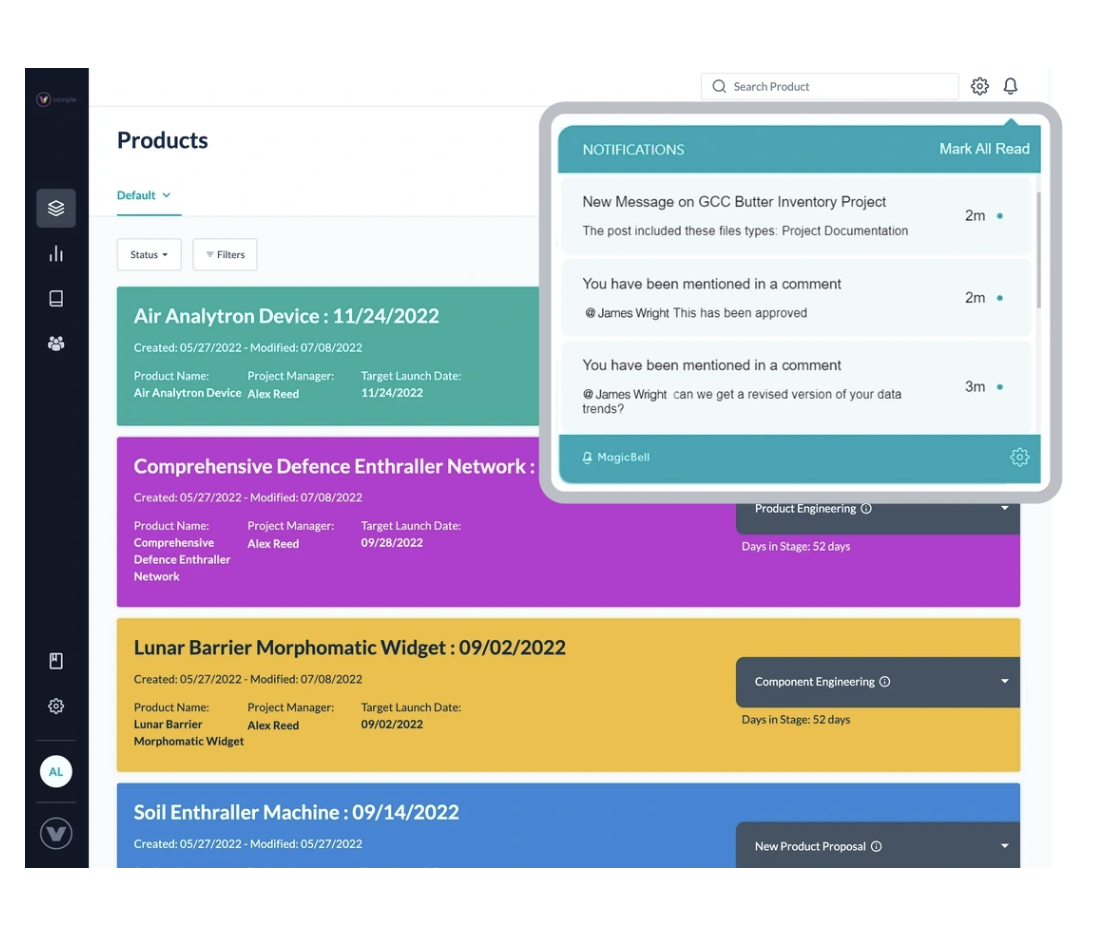
Vsimple uses MagicBell's API to build a smart alert system. Its alerts tell team members about status changes, sign-offs, and shipping details. This helps users stay on top of their work.
What makes Vsimple's system work
A smart inbox cuts down on noise. Vsimple has a clever inbox that sends updates based on each user's role. For example, a sales rep can set their inbox to show only sales alerts. They might see price quote changes instead of alerts from the whole account pipeline. When the system flags an alert as relevant, it sends it to the user's device based on their settings.
Source: (Vsimple)
Wait times stop repeat messages across channels. Vsimple does not blast every alert to all channels at once. It uses a timer and waits before sending to other devices. For example, if a desktop push alert goes unread for 10 minutes, the system sends it by email instead. This is based on user settings. The system also only sends alerts tied to each user's tasks.
GitHub
GitHub is a code hosting site for version control and teamwork using Git. Teams can work on files and merge changes with the main branch. GitHub also offers project tracking and CI/CD through GitHub Actions.
How GitHub sends updates
Alerts support the teamwork flow on GitHub. They share updates about things users follow. Users can sort, triage, and manage their alerts through the inbox.
By default, GitHub sends alerts for:
- Chats on a pull request, gist, or issue.
- Events in a repo or team thread.
- CI events, like workflow status and deploys via GitHub Actions.
- Repo issues, pull requests, releases, or security items.
What makes GitHub's system work
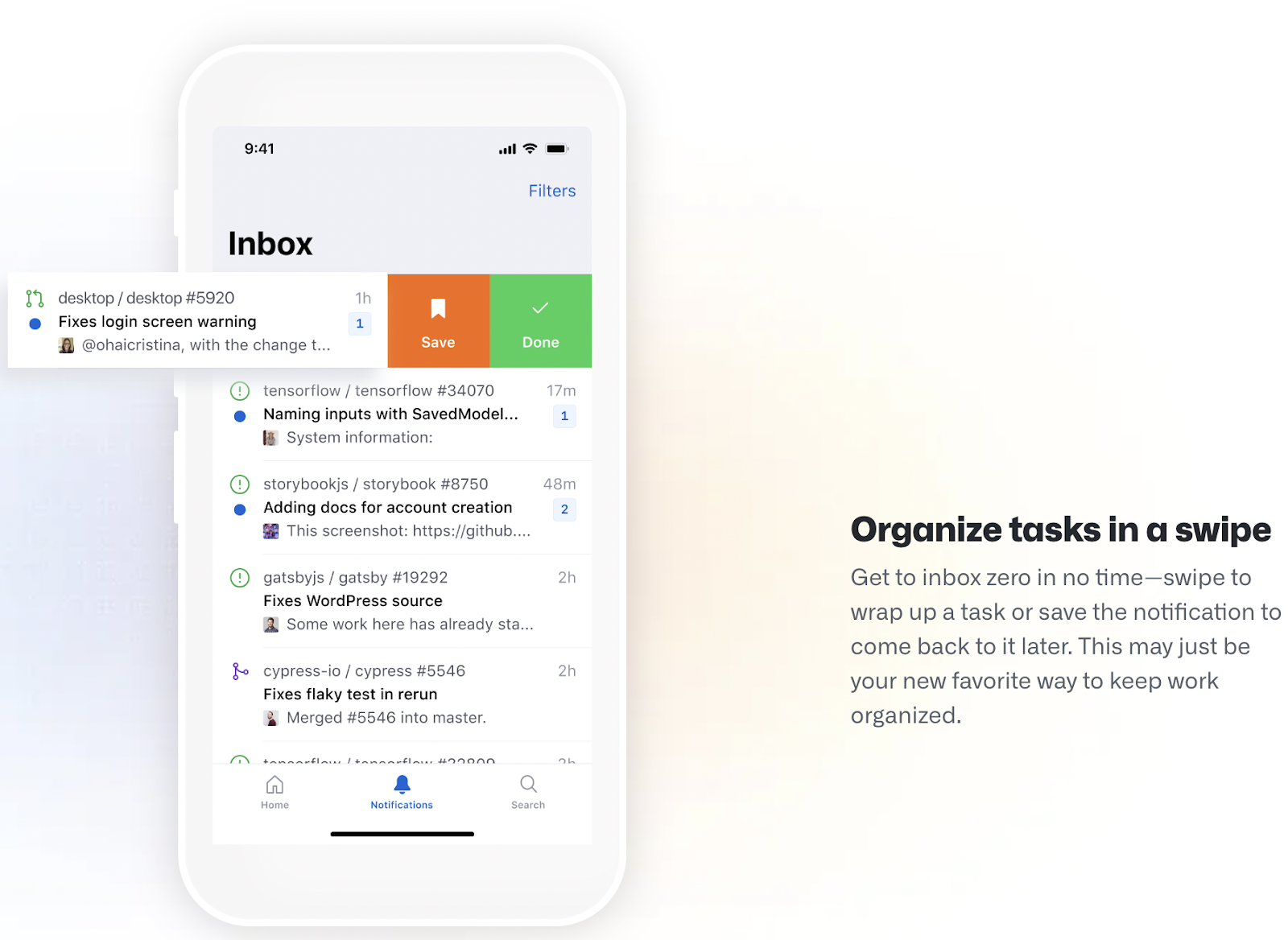
Cross-device alerts keep users up to date. Users can check alerts in the web inbox, the GitHub Mobile app, or email. They can also use all three at once.
Source: (GitHub)
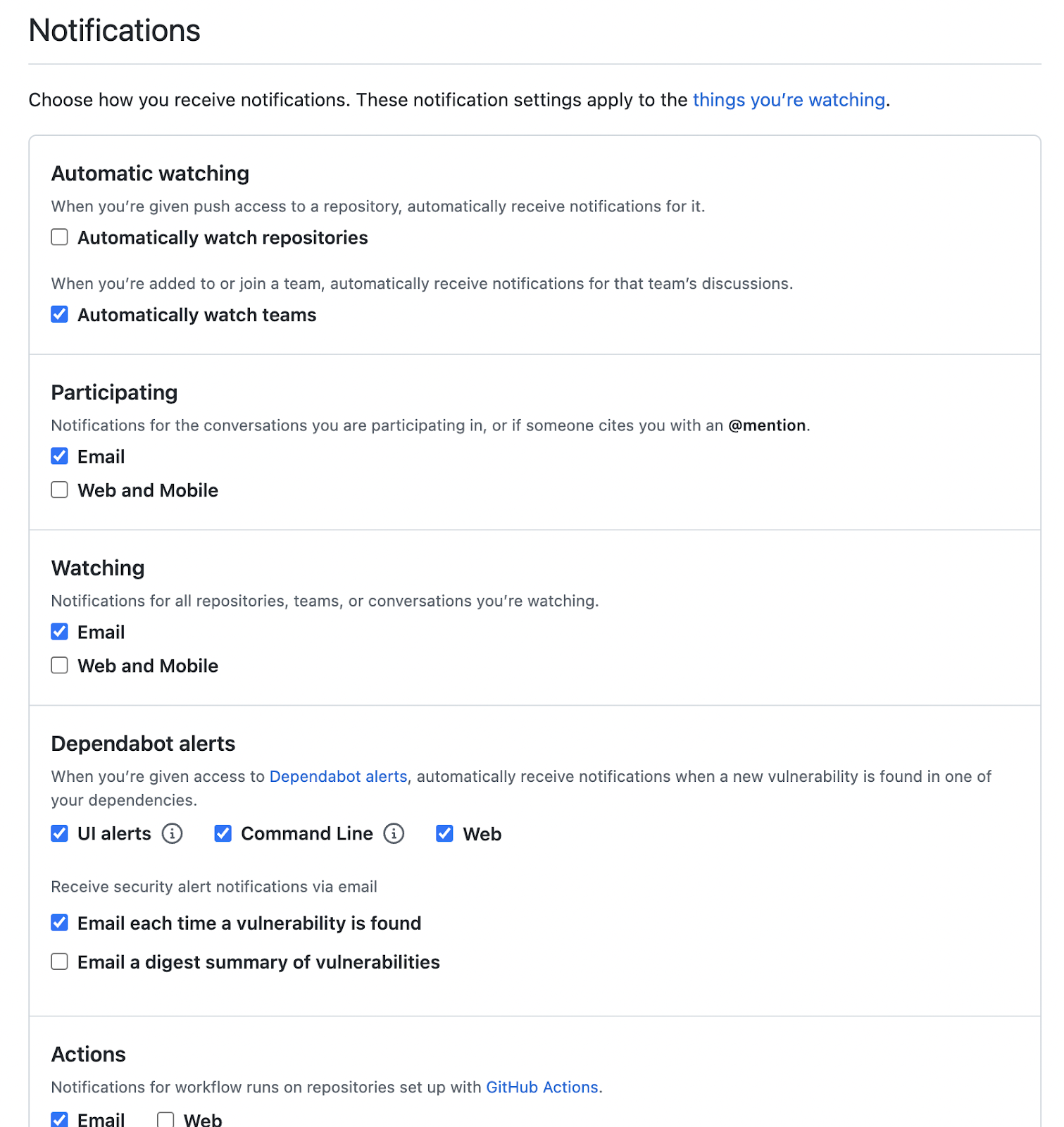
Fine-tuned settings let users pick what they get. GitHub lets users choose which events trigger alerts and how those updates arrive. Users can subscribe at the org, repo, or issue level. For example, they can get alerts only for issues and security items in a repo. They can skip all other types.
Source: (GitHub)
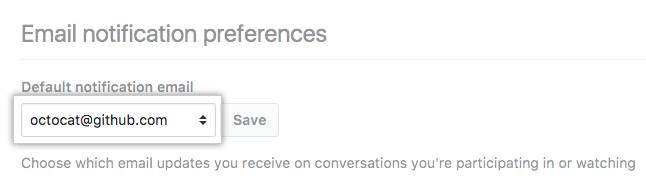
Custom email routing keeps things tidy. Users can set a main email for each GitHub org. They pick which workflow types trigger emails and which address gets them.
Source: (GitHub)
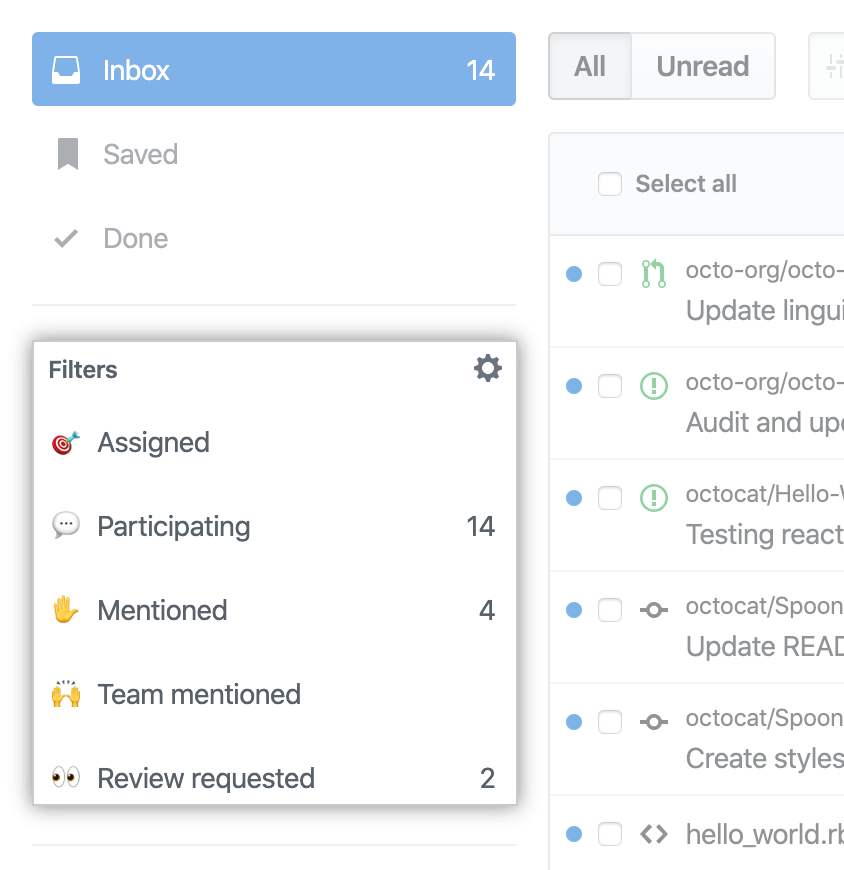
Filters and groups let users sort alerts fast. GitHub has strong inbox filters to help users manage their feed. The default filters cover task assignments, thread activity, review requests, and @tags.
Source: (GitHub)
GitHub also has custom filters. Users can focus on a set of alerts from one project. For example, they can make a filter for an open-source repo and only see alerts where they are tagged.
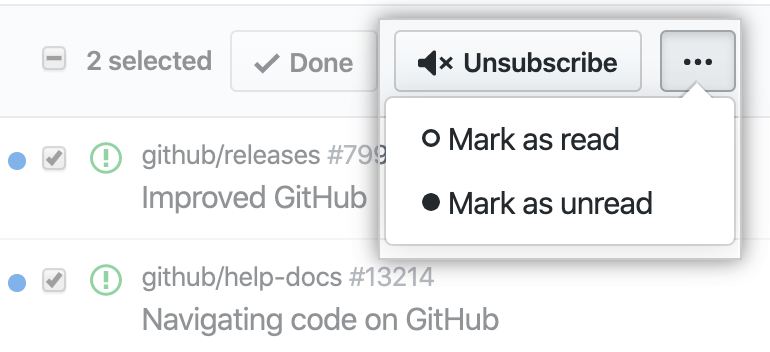
Users can also triage their inbox. They can:
- Mark an alert as done to clear it.
- Save an alert for later.
- Mark an alert as read or unread.
- Auto-unsubscribe from certain updates.
Source: (GitHub)
Why notifications matter for SaaS teamwork
A good alert system helps your users act fast and stay on top of their work. For example, Codescreen uses its notification center to help users fix delivery issues faster. It also helps teams talk and work better. Pitch uses MagicBell to help its users share updates about events through a solid alert system.
Multi-channel alerts are no longer a bonus. They are a must for SaaS products. Apps that get their alert system right will see better user outcomes and more growth.