Slack Channel Provider
Configuration
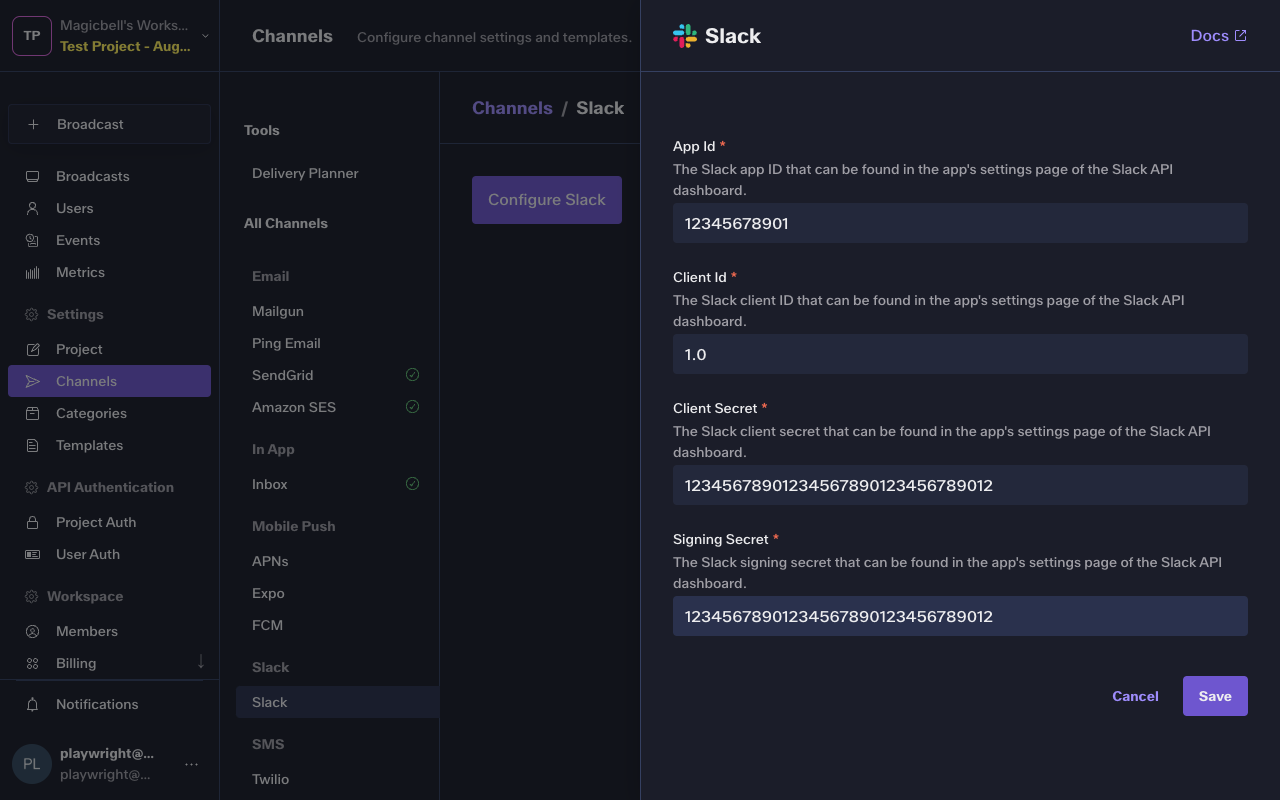
To configure the Slack integration, you'll need the following data:
| Parameter | Type | Description |
|---|---|---|
| client_id | string * | The Slack client ID that can be found in the app's settings page of the Slack API dashboard. |
| client_secret | string * | The Slack client secret that can be found in the app's settings page of the Slack API dashboard. |
| signing_secret | string * | The Slack signing secret that can be found in the app's settings page of the Slack API dashboard. |
| app_id | string * | The Slack app ID that can be found in the app's settings page of the Slack API dashboard. |
In the Dashboard
The easiest way to configure this integration is through the MagicBell dashboard:
- Log in to your MagicBell dashboard.
- Navigate to Channels.
- Find and click on this channel name in the sidebar.
- Click the Configure Slack button.
- Follow the on-screen instructions to complete the configuration.
Using the API
Use the API to save , list and delete Slack. For example, to save the integration:
Request
curl --request PUT \
  --url 'https://api.magicbell.com/v2/integrations/slack' \
  --header 'content-type: application/json' \
  --header "authorization: Bearer $TOKEN" \
  --data '{"app_id":"12345678901","client_id":"1.0","client_secret":"12345678901234567890123456789012","signing_secret":"12345678901234567890123456789012"}'
Channel Token
The channel token contains all the information (along with the config) necessary to deliver the notification on the Slack channel.
| Parameter | Type | Description |
|---|---|---|
| webhook | object | Obtained directly from the incoming_webhook object in the installation response from the Slack API. |
| └ url | string * | The URL for the incoming webhook from Slack |
| oauth | object | |
| └ scope | string | The OAuth scope granted during installation |
| └ channel_id | string * | The ID of the Slack channel this installation is associated with |
| └ installation_id | string * | A unique identifier for this Slack workspace installation |
Example
{
  "webhook": {
    "url": "https://example.com/webhook"
  }
}
Managing Tokens
Use the API to list , list , delete , delete , save , fetch , fetch , fetch , fetch , list , list , delete , delete and save Slack tokens. For example, to save a token:
Request
curl --request PUT \
  --url 'https://api.magicbell.com/v2/channels/slack/tokens' \
  --header 'content-type: application/json' \
  --header "authorization: Bearer $TOKEN" \
  --data '{"webhook":{"url":"https://example.com/webhook"}}'
Request
curl --request PUT \
  --url 'https://api.magicbell.com/v2/channels/slack/magicbell_slackbot/tokens' \
  --header 'content-type: application/json' \
  --header "authorization: Bearer $TOKEN" \
  --data '{"webhook":{"url":"https://example.com/webhook"}}'
Usage
1. When configured with
{
  "app_id": "12345678901",
  "client_id": "1.0",
  "client_secret": "12345678901234567890123456789012",
  "signing_secret": "12345678901234567890123456789012"
}
2. With a channel token
{
  "webhook": {
    "url": "https://example.com/webhook"
  }
}
3. With Broadcast
{
  "action_url": "https://example.com",
  "category": "example",
  "content": "I come from broadcast",
  "custom_attributes": {},
  "id": "d1b3b3b3-3b3b-3b3b-3b3b-3b3b3b3b3b3b",
  "overrides": {},
  "recipients": [
    {
      "custom_attributes": {
        "plan": "enterprise",
        "preferred_pronoun": "They",
        "pricing_version": "v10"
      },
      "email": "[email protected]",
      "external_id": "83d987a-83fd034",
      "first_name": "Person",
      "last_name": "Doe",
      "phone_numbers": [
        "+1 5005550001"
      ]
    }
  ],
  "title": "Hello, World!",
  "topic": "example"
}
The channel handler triggers a HTTP request
POST https://example.com/webhookWith payload
{
  "delete_original": false,
  "replace_original": false,
  "text": "*Hello, World!*\nI come from broadcast\nhttps://example.com"
}
Debugging
To debug the integration, you can use the following tools and techniques:
- Use the Deliveries screen in the MagicBell dashboard to monitor notification deliveries and troubleshoot issues.
- To experiment with or test the Slack API, you can use the Slack notification tester.