Web Push Channel Provider
Configuration
To configure the Web Push integration, you'll need the following data:
| Parameter | Type | Description |
|---|---|---|
| public_key | string * | VAPID public key - read more at https://magicbell.com/tools/vapid-keys. |
| private_key | string * | VAPID private key. |
In the Dashboard
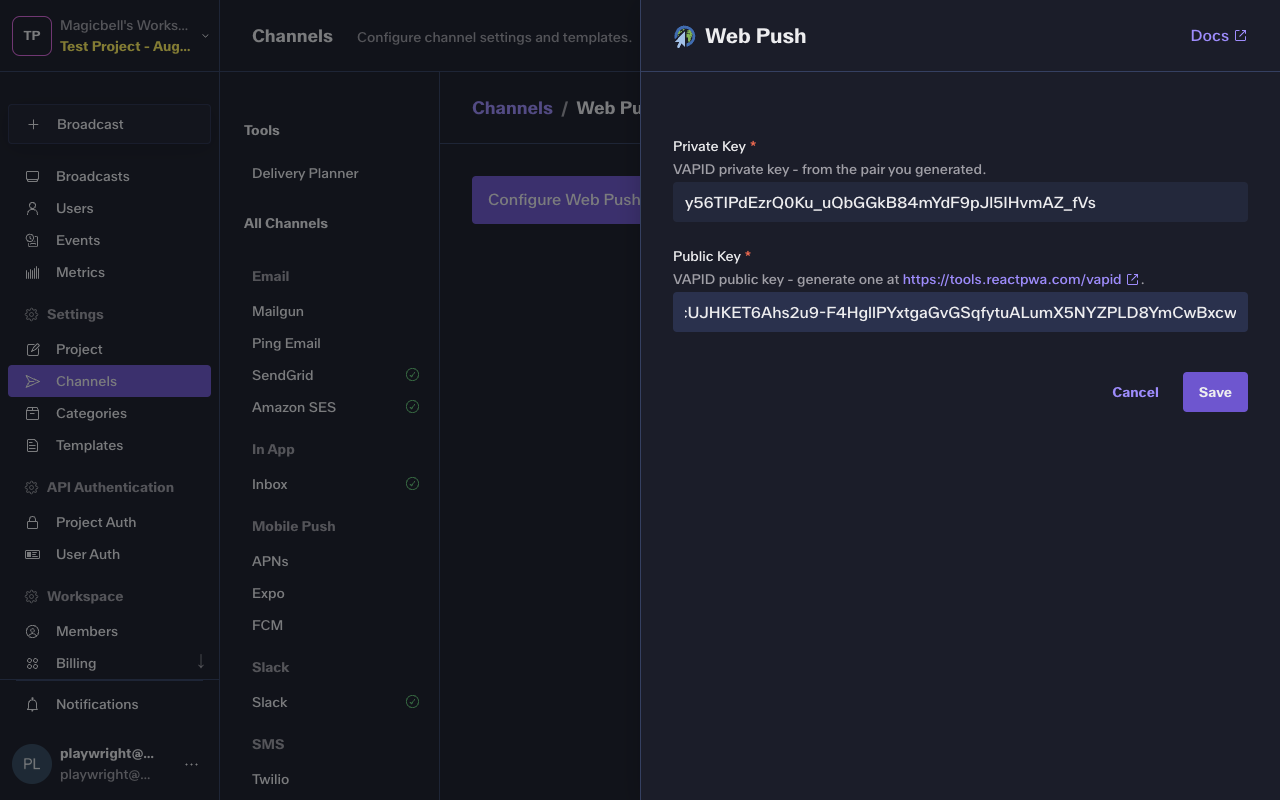
The easiest way to configure this integration is through the MagicBell dashboard:
- Log in to your MagicBell dashboard.
- Navigate to Channels.
- Find and click on this channel name in the sidebar.
- Click the Configure Web Push button.
- Follow the on-screen instructions to complete the configuration.
Using the API
Use the API to save , list and delete Web Push. For example, to save the integration:
Request
curl --request PUT \
  --url 'https://api.magicbell.com/v2/integrations/web_push' \
  --header 'content-type: application/json' \
  --header "authorization: Bearer $TOKEN" \
  --data '{"public_key":"BNKZeSrRX_c3QfqzOvv1oshpj1qPbDcUJHKET6Ahs2u9-F4HgllPYxtgaGvGSqfytuALumX5NYZPLD8YmCwBxcw","private_key":"y56TIPdEzrQ0Ku_uQbGGkB84mYdF9pJl5IHvmAZ_fVs"}'
Channel Token
The channel token contains all the information (along with the config) necessary to deliver the notification on the Web Push channel.
| Parameter | Type | Description |
|---|---|---|
| endpoint | string * | The push subscription URL obtained from PushSubscription.endpoint after calling registration.pushManager.subscribe(). This is the unique URL for this device that push messages will be sent to. |
| keys | object * | The encryption keys from the PushSubscription.getKey() method, needed to encrypt push messages for this subscription. |
| └ p256dh | string * | The P-256 ECDH public key obtained from PushSubscription.getKey('p256dh'). Used to encrypt push messages for this subscription. |
| └ auth | string * | The authentication secret obtained from PushSubscription.getKey('auth'). Used to encrypt push messages for this subscription. |
Example
{
  "endpoint": "https://fcm.googleapis.com/fcm/send/fZhR0fsr0zw:APA91bE4pM-qo1KBJDU_Zp2N9nDP-Jdmwugm-v4KNL_NlJvYCrJeJUzPXmMyAXqAE0m6BFOrkSWT0ArGbUjEEpxQEYZLado8JeW1PZA5CHB8R6C7HT6-MD6Qs8ZaCn8_ffLGGU7WuvtN",
  "keys": {
    "auth": "GoIO2ulhtQuyBM64lZuFuw",
    "p256dh": "BICAe4KtLhhPNFvynlqMRxjvpRnr94881QeuTCr8kCwJf-Fssj3FLIlnfFMjj7T1yNg5l6cn14350323_NSGZh0"
  }
}
Managing Tokens
Use the API to save , fetch , fetch , list , list , delete and delete Web Push tokens. For example, to save a token:
Request
curl --request PUT \
  --url 'https://api.magicbell.com/v2/channels/web_push/tokens' \
  --header 'content-type: application/json' \
  --header "authorization: Bearer $TOKEN" \
  --data '{"endpoint":"https://fcm.googleapis.com/fcm/send/fZhR0fsr0zw:APA91bE4pM-qo1KBJDU_Zp2N9nDP-Jdmwugm-v4KNL_NlJvYCrJeJUzPXmMyAXqAE0m6BFOrkSWT0ArGbUjEEpxQEYZLado8JeW1PZA5CHB8R6C7HT6-MD6Qs8ZaCn8_ffLGGU7WuvtN","keys":{"p256dh":"BICAe4KtLhhPNFvynlqMRxjvpRnr94881QeuTCr8kCwJf-Fssj3FLIlnfFMjj7T1yNg5l6cn14350323_NSGZh0","auth":"GoIO2ulhtQuyBM64lZuFuw"}}'
Debugging
To debug the integration, you can use the following tools and techniques:
- Use the Deliveries screen in the MagicBell dashboard to monitor notification deliveries and troubleshoot issues.
- To experiment with or test the Web Push API, you can use the Web Push notification tester.